




Skip to content

Literature review tools

Systematic Reviews, Minus the Spreadsheet Nightmares.

Manage screening decisions, track study inclusion and exclusion, and generate PRISMA flow diagrams in one integrated workflow. CiteGeist automatically organizes review counts and prepares structured metadata, including AI-generated study summaries, for easy CSV export.

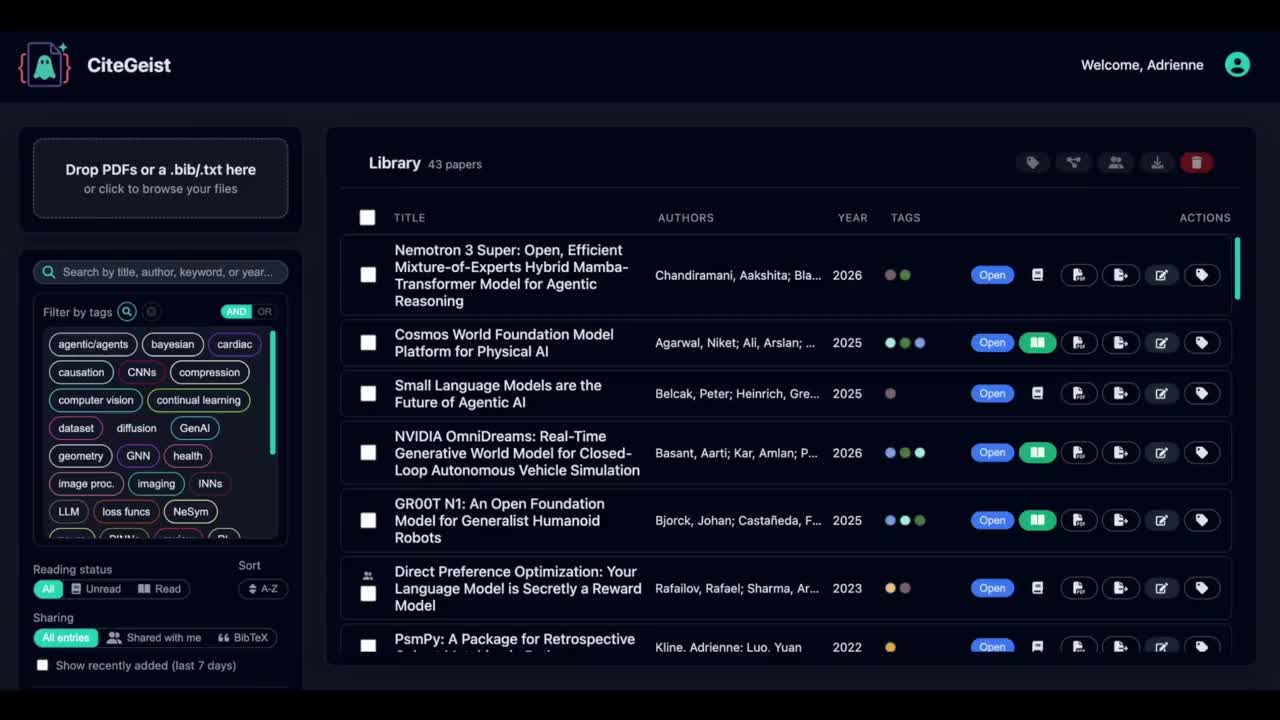
Imports .bib, .nbib from PubMed, .txt and .pdf

PRISMA flow Example review
1,284 records identified
  • PubMed612
  • Scopus438
  • Web of Science234

311 duplicates removed

973 records screened on title

642 excluded on title

331 abstracts screened

247 excluded on abstract

84 studies included

Counted from tags title-exclude abstract-exclude final-include
Example data. In your project the counts update as you tag records.

Search across the databases you already use

Run one search and pull matching records straight into your project, tagged with their source so your PRISMA identification count stays accurate.

  • PubMed Biomedical and life sciences literature
  • Hugging Face Papers, datasets and model cards
  • OpenAlex Open index of scholarly works and citations
  • medRxiv Health sciences preprints
  • Europe PMC Life sciences literature and preprints
  • More coming New databases are added regularly

Two outputs every systematic review needs

A PRISMA flow diagram for your methods section and a data extraction table for your analysis and supplementary materials, both built from the same project.

PRISMA flow diagram

Screening decisions become transparent counts

Map your exclusion tags once and CiteGeist fills in each box of the flow: identification, deduplication, title and abstract screening, and inclusion. Exclusions are shown at the stage where they happened, so reviewers can follow every record.

  • Records identified, split by database or query with source tags
  • Duplicate records removed
  • Title and abstract exclusions counted separately
  • Final records included, saved as a tagged set
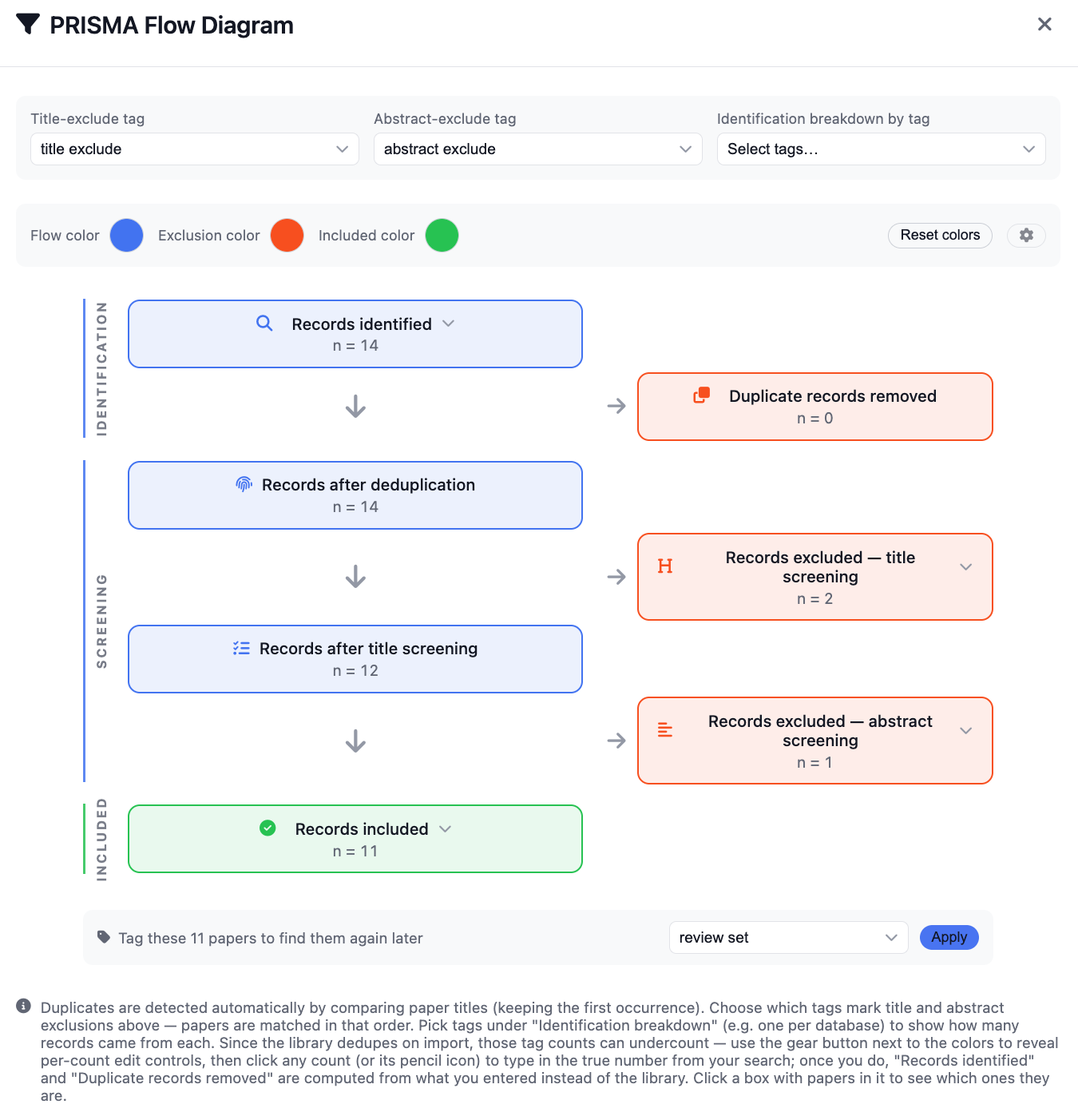
CiteGeist PRISMA flow builder showing records identified, duplicates removed, title and abstract exclusions, and records included
The PRISMA flow builder. Map exclusion tags, then confirm the final inclusion count.

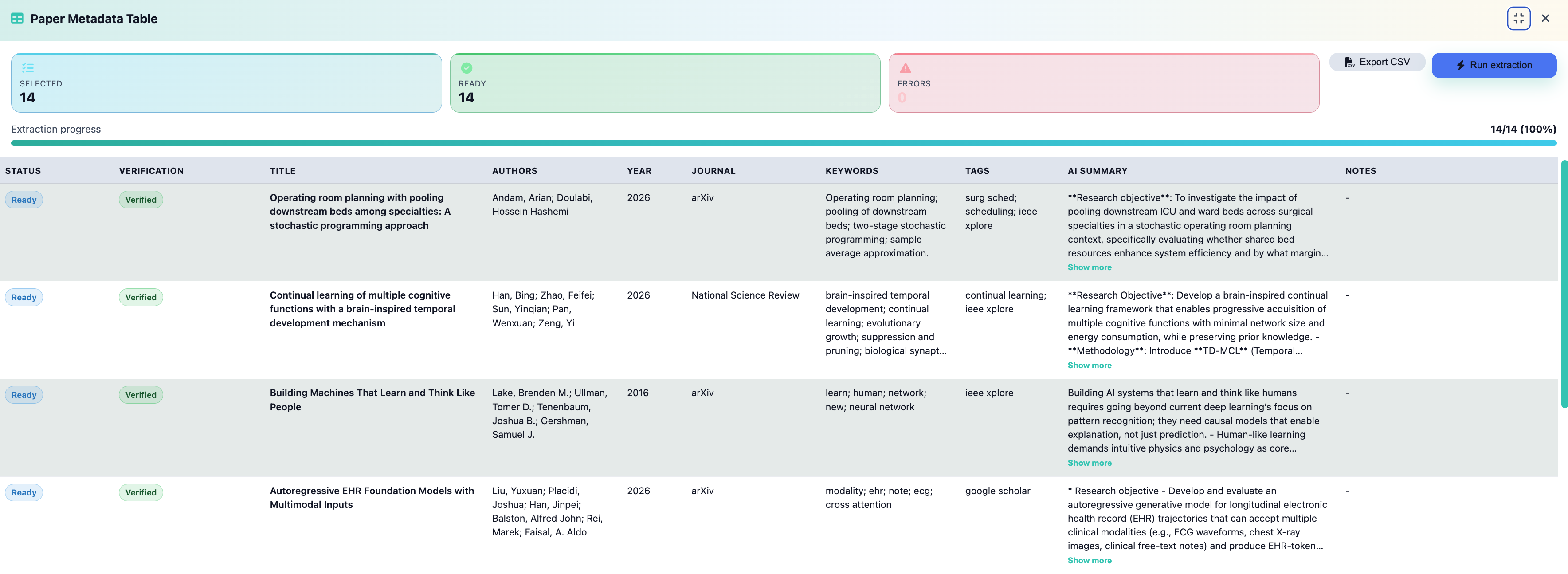
Paper metadata table

A data extraction table you can hand to your analysis

Run extraction on your included studies and review the key fields before you export. Status counters show how many papers are ready and which need attention, so the table you share is complete and reproducible.

  • Title, authors, year, journal, keywords and tags
  • An AI summary of each paper, expandable in place
  • A notes field for limitations, findings and meta-analysis details
  • One-click CSV export for appendices and analysis tools
CiteGeist paper metadata extraction table with selected, ready and error counts and an Export CSV button
Check that Ready matches Selected, then export the table as CSV.

See your literature as a network, not a list

CiteGeist maps every paper in your project by citation and topic similarity, so clusters, gaps and outliers show up before you've read a single abstract.

The knowledge graph view in CiteGeist

  • Spot clusters at a glance

    Papers group by shared citations and topic overlap, so the shape of your field appears automatically.

  • Find the gaps

    Thin connections between clusters often mark an under-cited angle worth covering in your review.

  • Click through to read

    Select any node to open that paper's metadata, tags and notes without leaving the graph.

How to build a PRISMA flow diagram and export your included studies

Screen, tag, and export without the extra steps. One guided workflow handles your PRISMA counts and study metadata together.

Build the PRISMA flow

Turn screening decisions into reportable counts.

  1. Choose your exclusion tags

    Pick the tags that mean excluded on title and excluded on abstract so each count lands in the right screening stage.

  2. Split identification by source (optional)

    Add source tags to break records identified down by database, import or search query.

  3. Check the computed boxes

    Confirm records identified, duplicates removed, records after title screening, abstract exclusions and records included.

  4. Tag your final inclusion set

    Label the included papers. That tag is the handoff to the metadata table and your audit record of included studies.

Extract and export the metadata table

Turn included studies into analysis-ready data.

  1. Select the set and run extraction

    Use the Selected count to confirm scope, click Run extraction and wait for Ready to match it.

  2. Review summaries and core fields

    Spot-check titles, authors, years, journals and keywords. Add limitations, key results and meta-analysis details in each paper's notes.

  3. Resolve or document errors

    If Errors is above zero, fill the metadata gaps or record the known limitation before the final export.

  4. Export CSV

    Download the table for synthesis, processing pipelines and long-term record keeping.

Good reviews start with good habits

Three habits separate a review that sails through peer review from one that comes back with "please clarify your methods."

Do this every time

Before you export

  • Freeze your search date before you finalise PRISMA counts.
  • Keep exclusion tags mutually exclusive wherever you can.
  • Use the notes field like margin notes for limitations, findings and meta-analysis details.

The #1 reason reviews get sent back

Common pitfalls

  • Using one broad tag for both title and abstract exclusions.
  • Exporting before every selected paper shows as ready.
  • Changing tagging rules mid-review without recording why.

Ready for submission

What to include in your supplement

  • The PRISMA flow diagram as a saved figure.
  • The metadata CSV, named with the review title and export date.
  • The final inclusion set from your PRISMA tags, for transparent analysis tracking.

Literature review questions

What is a PRISMA flow diagram?

A PRISMA flow diagram reports how many records a systematic review identified, how many duplicates were removed, how many were excluded at each screening stage, and how many studies were finally included. PRISMA stands for Preferred Reporting Items for Systematic Reviews and Meta-Analyses, and many journals ask for the diagram alongside a systematic review.

How does CiteGeist calculate PRISMA counts?

You choose which tags mean excluded on title and excluded on abstract. CiteGeist then counts records identified, duplicate records removed, records after title screening, records excluded after abstract screening and records included. Optional source tags split the identification count by database, import or search query.

Which file formats can I import for a literature review?

CiteGeist imports .bib (BibTeX), .nbib (PubMed), .txt and .pdf files. Moving over from another reference manager? See how to migrate your library.

What does the metadata table CSV export contain?

Each included paper becomes one row with its title, authors, year, journal, keywords, tags, AI summary and your notes, so limitations and findings you recorded during the review travel with the data.

What should I do if metadata extraction shows errors?

Wait until the Ready count matches your Selected count. If the Errors count is above zero, fill in the missing metadata for those papers or record the known limitation in their notes before you export.

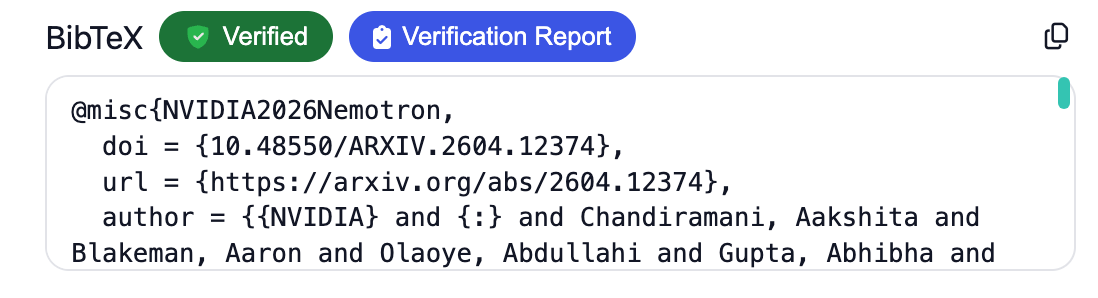
Can I check my references before I submit the review?

Yes. Reference verification checks each citation against its source and flags mismatches before you submit.


Your research doesn't end when the literature review is complete, and neither does CiteGeist.

Take your work from screening and synthesis to writing and publication without switching tools or starting over.

Whether you're inserting citations, formatting your bibliography, or putting the finishing touches on your manuscript, we've got you covered.

Keep your research moving with our guides on how to cite, BibTeX formatting, and step-by-step tutorials.

Build your PRISMA flow and data table in one project

Import your search results, tag as you screen and export your included studies when you are ready.