


Extensions
Word is live!
The CiteGeist extension for Microsoft Word is now available. Overleaf and Google Docs extensions are coming soon, and we will post full setup guides here as they launch.
In the interim, you can still use CiteGeist to generate fully formatted references and copy/paste them directly into your document.
Overleaf
A native CiteGeist panel directly inside Overleaf — search your library, pick a style, and drop BibTeX citations into your LaTeX project without switching tabs.
Coming soon!
Extension in development
Microsoft Word
The CiteGeist add-in for Word keeps your reference library one click away so you can search, cite, and maintain a clean bibliography without leaving your document.
1. Adding the Extension
Install the CiteGeist add-in from Word, sign in with your account, and the CiteGeist panel opens alongside your document, ready to search and insert citations.
1. Add the Add-in
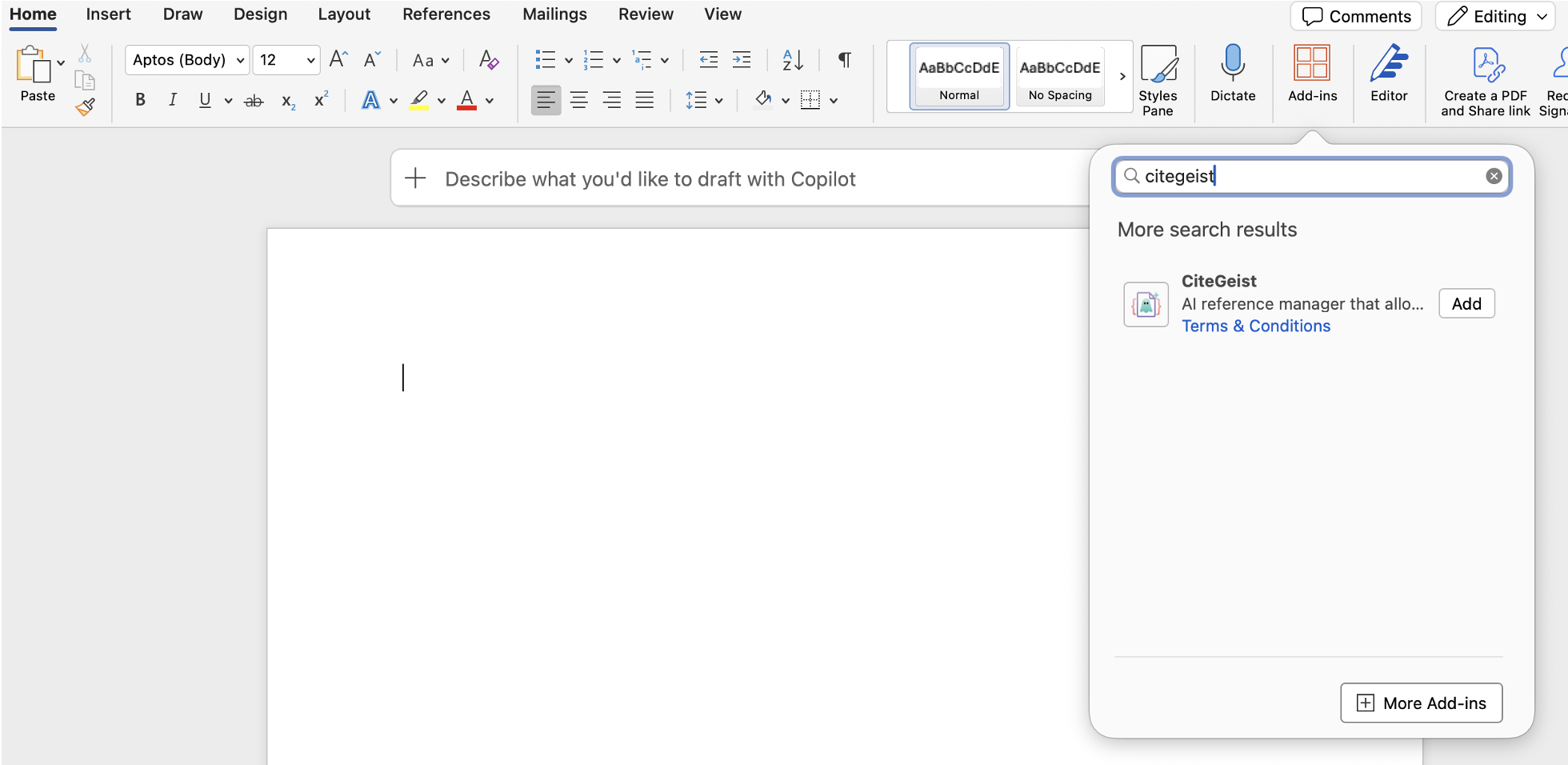
From Word's Add-ins menu, search for CiteGeist and select it to install the task pane.
2. First Run
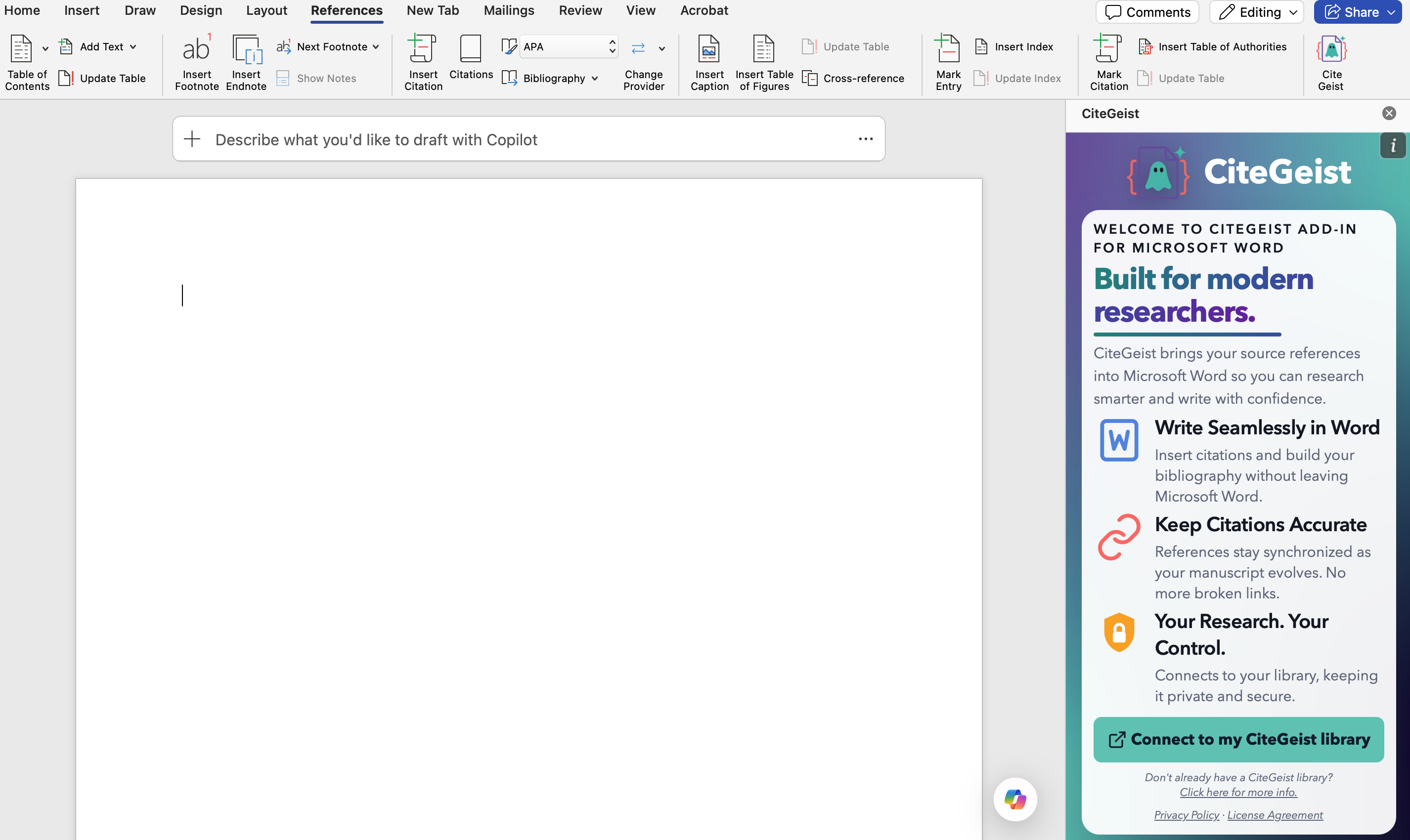
On first launch, Word opens the CiteGeist task pane so you can continue setup.
3. Sign In
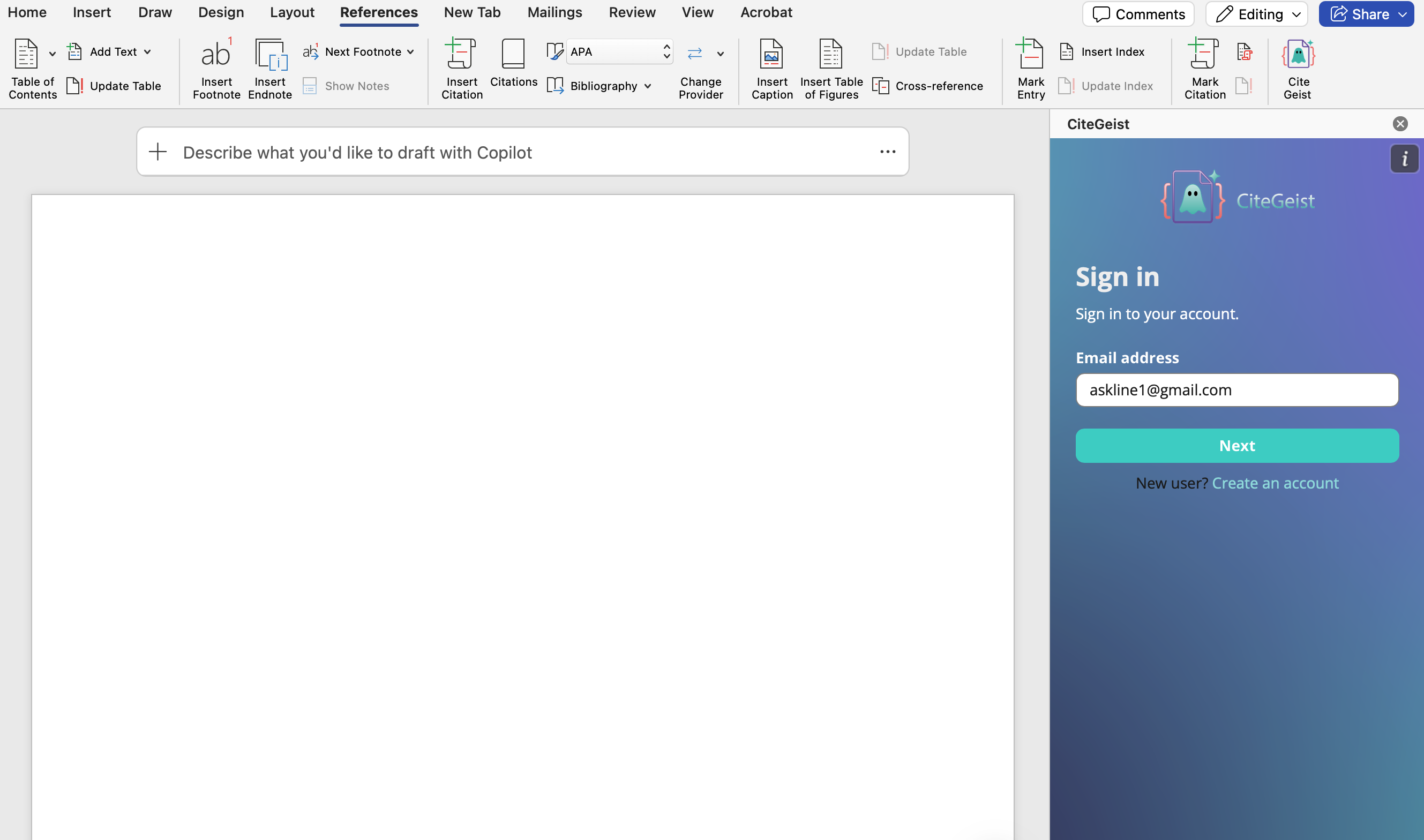
Sign in with your CiteGeist account to connect your reference library to the add-in.
4. Start Citing
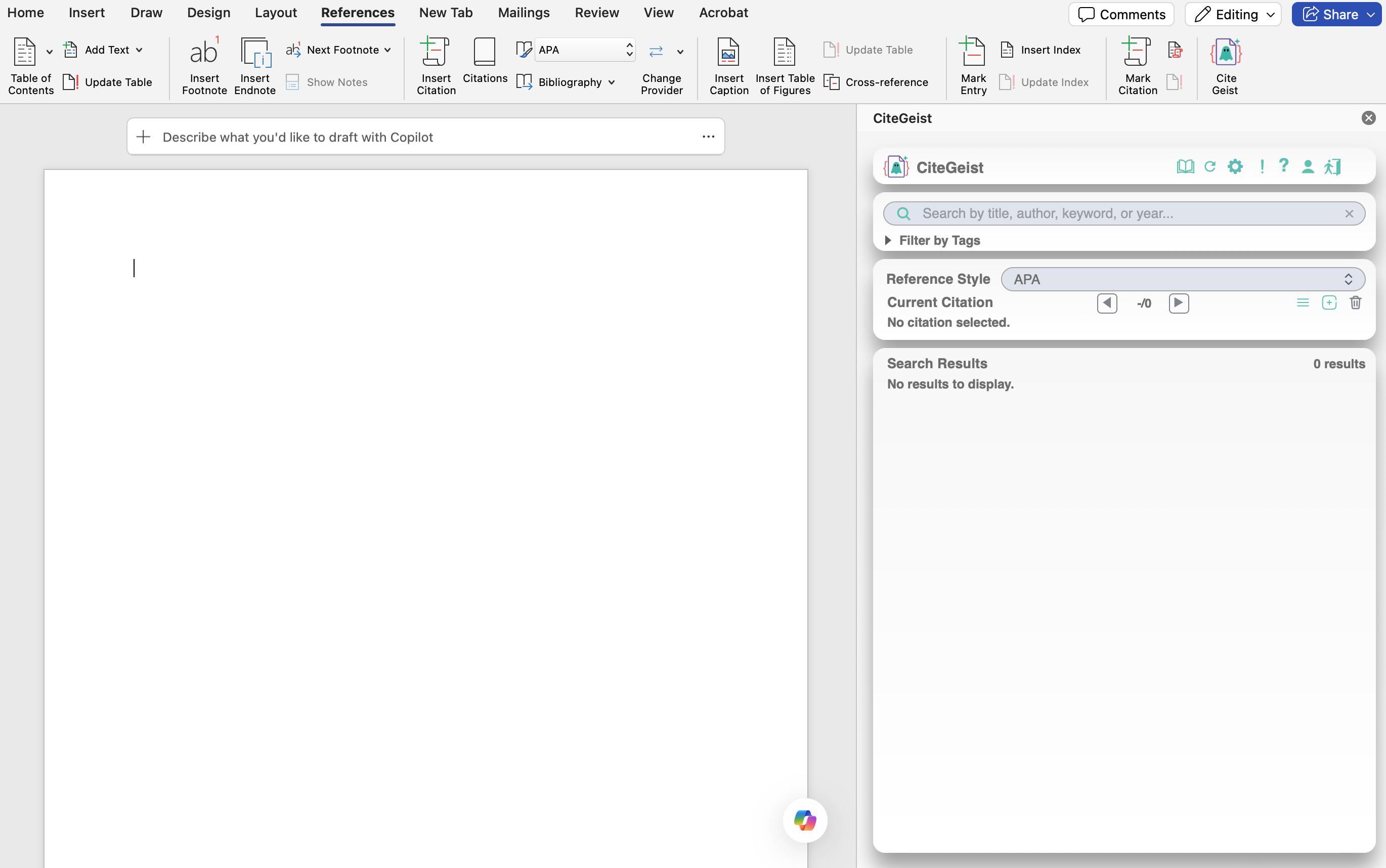
The CiteGeist panel opens in the task pane, ready to search and insert citations.
2. Interface Overview
CiteGeist in Word is arranged as four stacked panels. The Title Panel contains document-wide actions and session controls. The Search Panel finds references, Search Results presents matches, and the Current Citation Panel manages the citation currently selected in Word.
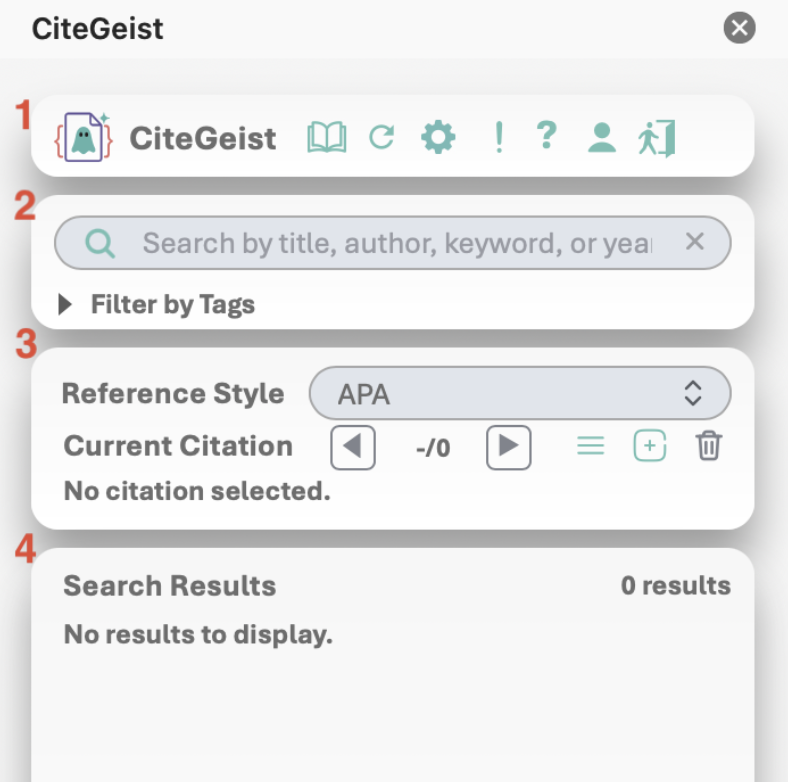
Title Panel

- Bibliography: Creates or regenerates the bibliography from the document's CiteGeist citations. Use this after adding or removing sources.
- Refresh: Quickly updates CiteGeist citation text when citation display appears out of date.
- Control Panel: Opens appearance, highlighting, warnings, notification, and animation settings. Changes apply immediately.
- Notification: Opens notices, warnings, and status messages from the current session.
- User Guide: Opens the online help for task guidance, troubleshooting, and support.
- User Information: Shows account, authentication method, version, environment, session status, and Word-host availability.
- Sign Out: Ends the current session. Save your Word document before signing out, especially on shared machines.
Control Panel
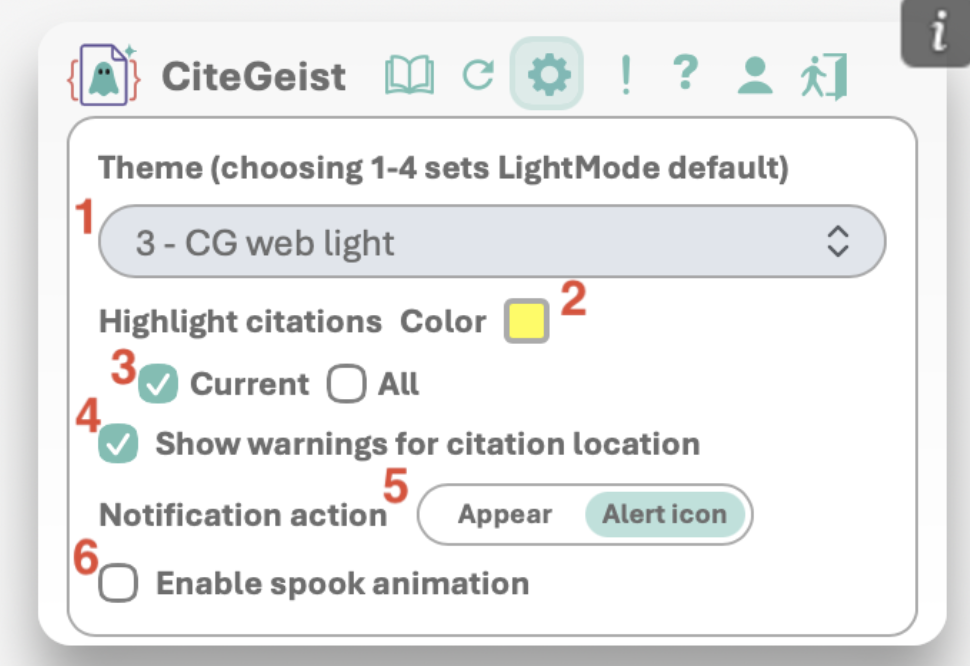
- Theme: Chooses the task pane's visual theme. Interface only; no citation content changes.
- Highlight color: Sets the color used to identify citations in Word.
- Citation highlighting: Highlight current citation, all citations, both, or neither.
- Citation-location warnings: Warns when the cursor is in a location where citation insertion is usually discouraged.
- Notification action: Choose whether notices show as an alert icon or appear automatically. Press Esc to dismiss.
- Animation: Toggles mascot idle animation. Decorative only.
Notifications
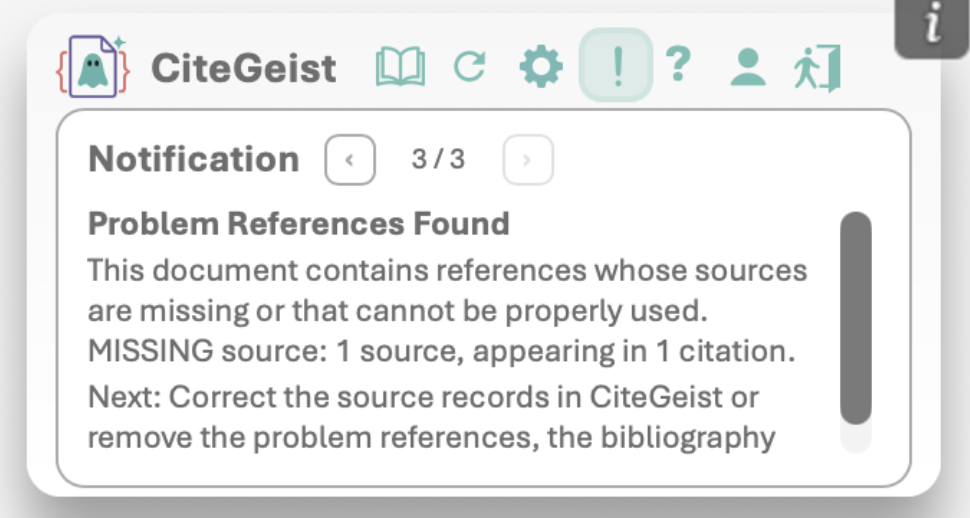
Open the Notification panel and review messages one by one.
- Use Previous and Next when multiple notices are available.
- Read the recommended next step in each notice.
- Dismiss with Esc or by selecting Notification again.
User Information
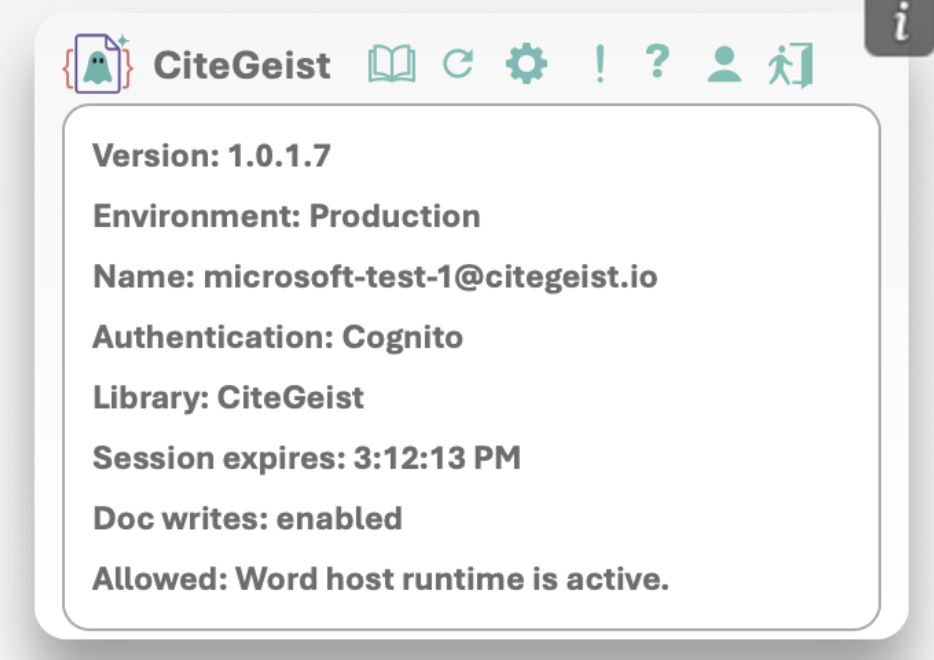
- Version and environment: Useful when reporting issues.
- Account and authentication: Shows signed-in user and provider.
- Library and session: Active library and approximate session expiration.
- Word-host status: Confirms whether CiteGeist can write citation content into the document.
3. Finding References
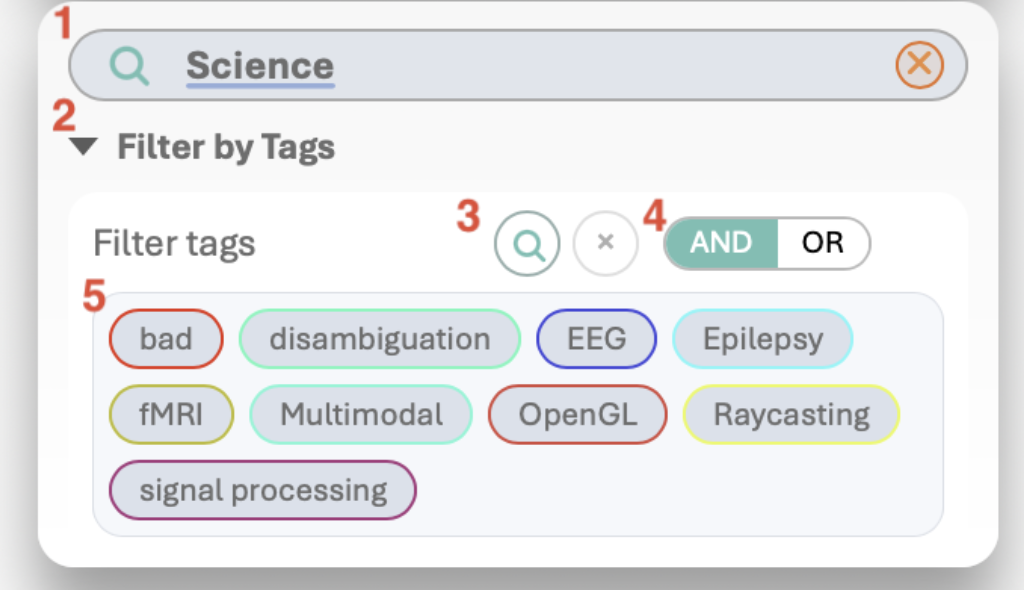
The Search Panel and Search Results work together. Enter text or select tags in Search, then review matching references below.
Search Panel
- Search field: Enter at least two characters. Distinctive names, phrases, and years usually give the clearest matches.
- Filter by Tags: Opens tag controls. Tags can narrow broad text searches or be used on their own.
- Tag search and clear: Searches available tag names. Clear removes only the tag-search term, not selected tags.
- AND / OR: AND requires all selected tags; OR accepts references matching any selected tag.
- Available and selected tags: Select a tag to apply or remove it. Tag colors only help visual distinction.
Search Results
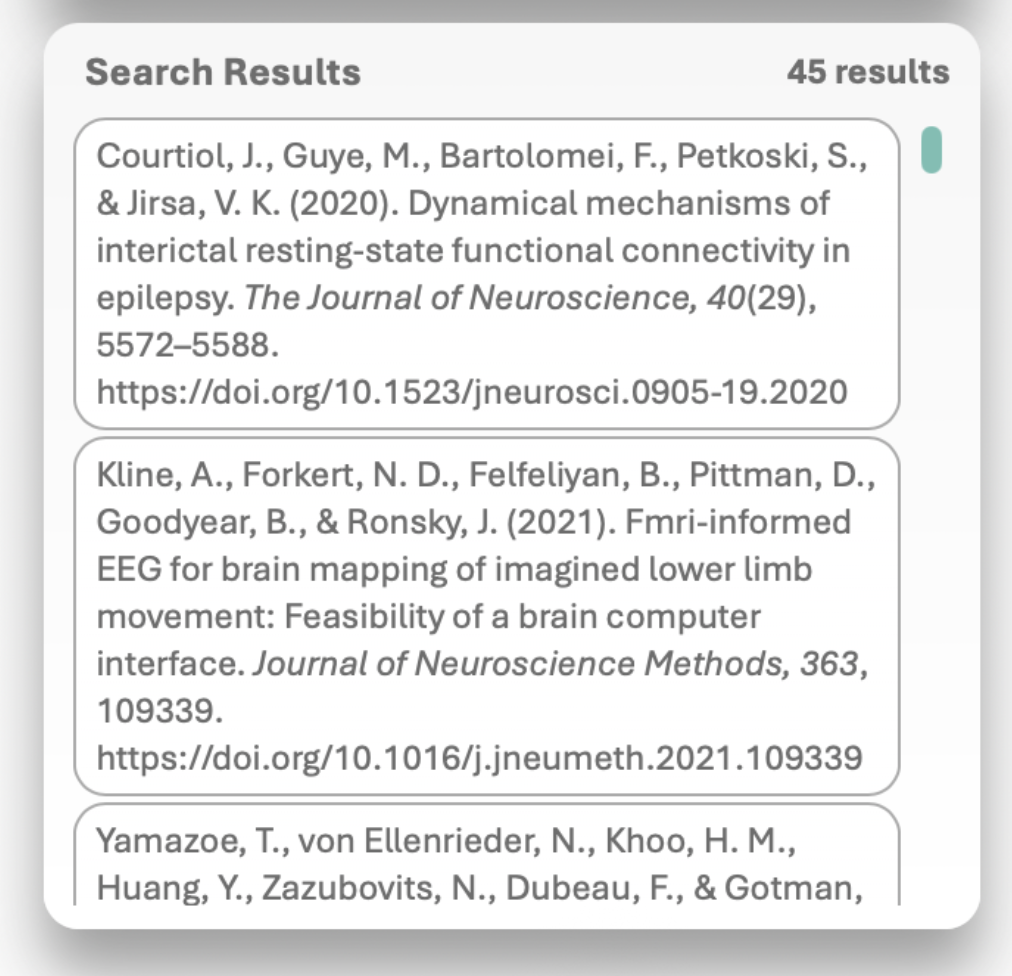
Results list references that match the current text query, tag filters, or both.
- Select a reference or checkbox to add it to the active citation; select again to remove it.
- When no citation is active, references do not show selection checkboxes and cannot be added.
- Checked references are already included in the current citation.
4. Current Citation Panel
The Current Citation Panel is the center of citation work. It activates when your Word cursor is inside a CiteGeist citation and lists each reference currently included.
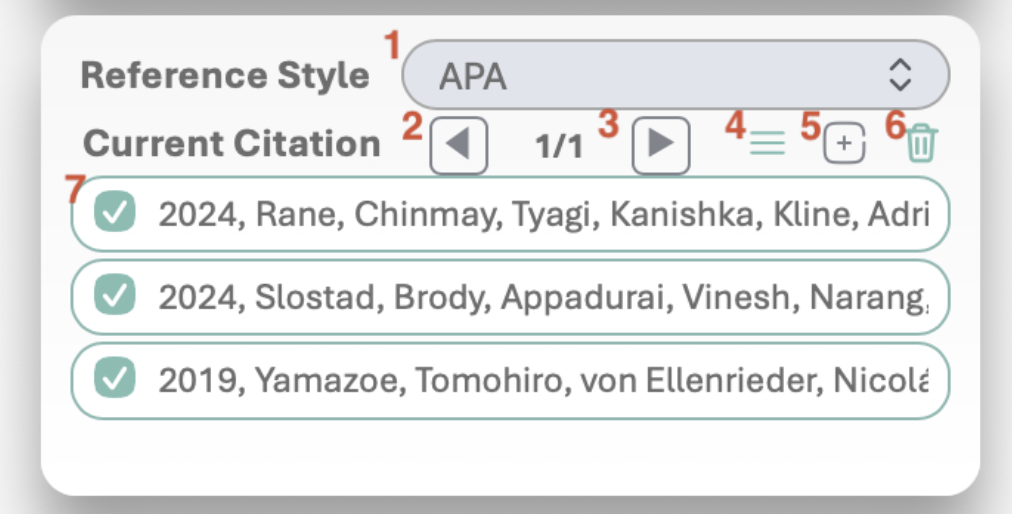
- Reference Style: Changes citation and bibliography formatting for the entire document.
- Previous: Moves to the prior citation.
- Next: Moves to the next citation.
- Display Mode: Changes level of detail shown in the panel only.
- New Citation: Creates an empty citation at the current cursor location.
- Delete Citation: Removes the entire current citation.
- Reference inclusion controls: Add or remove individual references from a grouped citation.
Create a citation
Place the cursor, select New Citation, search and select at least one source, then move outside the citation to finalize.
Add or remove a reference
Open the citation, select another source to add, or clear a selected source to remove only that reference.
Delete a citation
Open the citation and select Delete Citation to remove the complete citation entry.
Update bibliography
After adding or removing sources, move outside the citation and select Bibliography.
Dynamic panel sizing
Search, Search Results, and Current Citation share vertical space. Hovering a populated panel gives it more room while others contract. This only changes the task-pane view and does not modify the document.
5. Special Cases
Occasionally, CiteGeist may find that a reference is no longer available or cannot yet be cited reliably. These conditions affect only the marked reference, not the entire document.
MISSING references
- What it means: The source was available earlier but can no longer be retrieved from the active library.
- Why it happens: The source may be deleted, unshared, or inaccessible from the current account.
- What CiteGeist does: Marks the source MISSING and raises Notification/Bibliography indicators.
- What to do: Remove the missing source and add an available replacement. Bibliography regeneration is blocked until all MISSING references are removed.
INVALID references
- What it means: The source exists but does not include enough valid metadata for the current style.
- Why it happens: Required metadata may be missing, malformed, or inconsistent.
- What CiteGeist does: Shows the source in red as INVALID and prevents insertion.
- What to do: Correct the source in the main CiteGeist library or choose another complete source, then search again.
Google Docs
A Google Workspace add-on that brings your CiteGeist library into the Docs side panel — search, insert, and format references in seconds.
Coming soon!
Extension in development